Steal Evolution Controls
Practical PC and mobile inputs for movement, steals, pads, and menus — so chases do not die to mis-taps.
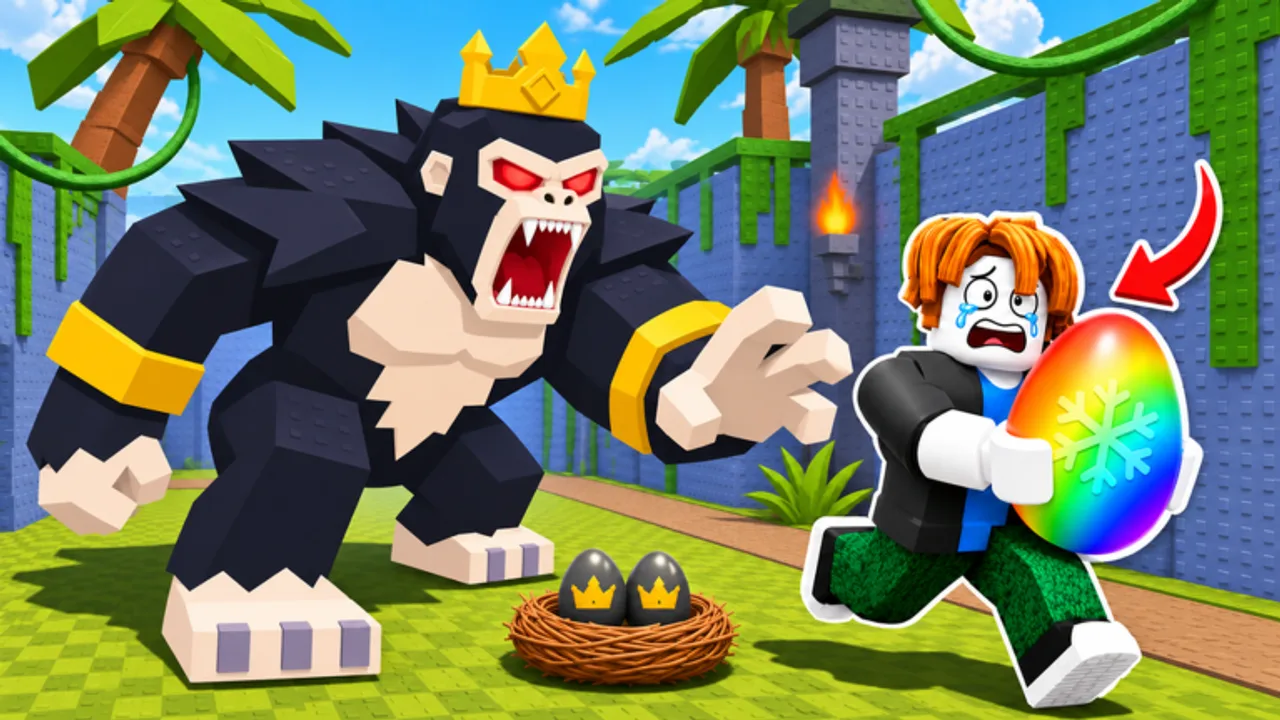
Clean controls win steals in Steal Evolution. The Roblox experience from LOL STUDIO LOL (live since 13 November 2026) is not a slow single-player tycoon. About seven players share each server, units must be carried home, and a single missed interact prompt can hand Cappuccino Assassino or a Bombardino-style prize to someone else.
This page is the practical input map for PC and mobile. It does not invent hidden keybinds the developers never shipped. Use it with Getting Started, How to steal units, How evolution works, and the Guides Hub.
Mindset before the keybinds
Steal Evolution asks for three control skills:
- Move with intent — pathing matters more than raw sprint spam.
- Interact on time — grabs, placements, and menu confirms must land on the first try.
- Recover under pressure — when a chase starts, camera and movement habits decide the carry.
If your fingers fight the HUD, fix that before chasing S-tier units on the Character tier list.
PC controls (typical Roblox layout)
Exact labels can vary slightly with Roblox client settings, but most players should expect:
- WASD — movement.
- Shift — sprint when the experience enables it; sprint stamina or speed upgrades change how far you get during a carry.
- Space — jump for small terrain checks and dodging body-blocks.
- E or Proximity prompt click — primary interact for picking up units, placing on pads, and confirming world actions. This is the steal button in practice.
- Left mouse — camera look / click UI buttons.
- Right mouse (if enabled) — alternate camera or context actions depending on your Roblox settings.
- Esc / Roblox menu — leave, respawn options, and client settings.
- On-screen HUD buttons — Codes, shop, evolution, inventory, or index panels when the game exposes them.
PC tips that matter in Steal Evolution
- Bind your hand so movement and interact never fight. Many failed steals are just late E presses.
- Keep the camera slightly elevated while carrying so you see cut-off angles.
- Click pad placement prompts deliberately; panic double-clicks can open the wrong panel.
- Lower graphics only if frame drops ruin timing — smooth movement beats pretty neon when seven players collide.
Mobile controls
Mobile players use Roblox’s virtual joystick and on-screen buttons:
- Left thumb stick — movement.
- Jump button — vault small obstacles.
- Interact / prompt button — appears near stealable units and pads; tap promptly.
- Camera drag — usually right-side finger drag to look around.
- HUD icons — shop, codes, evolve, and social reward panels.
Mobile-specific advice
- Play in landscape when possible for wider chase vision.
- Increase touch sensitivity only if you still retain precision on prompts.
- Do not cover the interact button with your camera finger during a grab.
- Prefer shorter steal routes; mobile precision during long carries is harder than on keyboard.
- If menus feel cramped, finish placement first, then open evolution or shop UI — see spending discipline on How evolution works.
Steal-specific control sequence
Train this sequence until it is boring:
- Approach the unit with camera already facing your escape lane.
- Trigger interact the moment the prompt is valid.
- Turn toward home without stopping to inspect the model.
- Hold a clean line; mini-strafe only to break body-blocks.
- At your pad, hit interact/place immediately.
- Only then open shop, evolve, or emote.
That order is the difference between owning Tra La La income and watching a rival finish your work. Full route theory lives on How to steal units.
Menu and meta UI habits
- Open the Codes UI once per session even when lists are empty — soft drops happen; details on the Codes Hub.
- Check evolution affordability when you are safe at base, not mid-plaza.
- Favorite and group rewards often need a rejoin; use Roblox leave/rejoin cleanly rather than force-closing mid-carry.
- After patches, re-verify button positions via Launch update notes and the Updates Hub — HUD layouts can shift.
Accessibility and comfort settings
Roblox client settings can help:
- Shift lock (PC) for consistent camera during chases if you prefer it.
- Camera sensitivity tuned so a 180 toward home is controllable.
- UI scale on mobile so prompts remain tappable.
- Mute music, keep SFX if audio cues help you notice nearby players without distraction.
Comfort is competitive. Hand cramps and mis-taps are stealth nerfs.
Practice drills (five minutes)
- Prompt drill: Grab and place a low-value unit ten times without opening other menus.
- Path drill: From a mid-map spot, return to your base on two different routes while sprinting.
- Pressure drill: Ask a friend in a private vibe check — or use a quiet server moment — to chase you during a carry so you learn camera recovery.
- Menu drill: From a placed pad, open evolve/shop and close it in under two seconds without walking away.
Run these before you hunt Assassino or Bombardino targets ranked on the Tier List Hub.
Platform parity notes
The economic rules are the same on PC and mobile: steal, place, evolve, defend. Inputs differ; outcomes should not. If a friend claims a secret PC-only steal bind, treat it as misinformation unless you can reproduce it. Official play links remain on the Official Links page (PlaceId 132710340175778).
Related pages
- Guides Hub
- Best starter units
- Players Hub
- Scripts Hub — not a controls substitute; automation has account risk
Master movement and interact timing first. Steal Evolution’s meme energy is loud, but the winners are usually the players whose fingers simply do not miss.
Frequently Asked Questions
Quick answers for Steal Evolution players.
What button steals a unit in Steal Evolution?
Use the proximity interact control — typically E on PC or the on-screen prompt on mobile — when you are close enough to the unit, then place with the same interact at your pad.
Do PC players have an advantage?
Keyboard movement can feel precise, but mobile is fully viable. Shorter routes and prompt practice matter more than platform bragging.
Why do I keep missing the place prompt?
Slow down at the pad, face the slot, and tap interact once cleanly. Panic camera swings are the usual cause.
Should I use shift lock?
If it helps you keep a consistent camera during carries on PC, yes. If it disorients you, leave it off — comfort beats dogma.
Where do I open codes and evolution menus?
Use the on-screen HUD buttons after you load in. Confirm placement first during contested moments, then open menus at base.